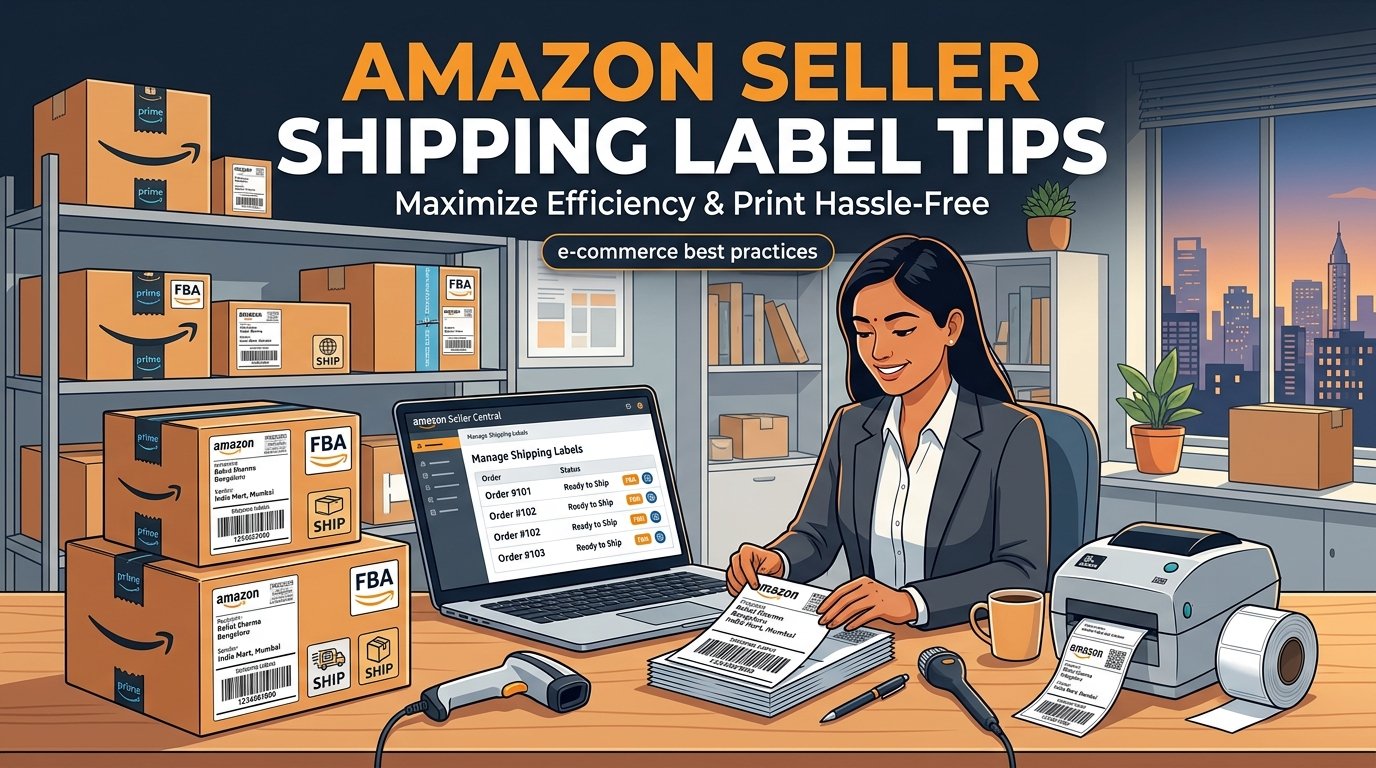
Selling on Amazon India (also known as Amazon.in) comes with its own set of challenges when it comes to shipping label management. Whether you are doing Easy Ship (self-ship with Amazon courier pickup) or FBA (Fulfilled by Amazon), the label format, download process, and printing workflow differ from Meesho or Flipkart.
Understanding Amazon Shipping Label Formats
When you go to Amazon Seller Central → Orders → Buy Shipping, you can download labels in PDF format. Amazon labels typically include:
- Shipping barcode — scanned by the courier partner (Amazon Transportation Services, Blue Dart, Delhivery)
- Customer address — delivery destination
- Seller return address — your registered address
- Order ID — unique Amazon order identifier
- Product details — ASIN, SKU, and product title
The Sorting Problem for Amazon Sellers
When you download a batch of 50-100 shipping labels from Seller Central, they are ordered by the time the order was placed. This means your labels are completely jumbled — a blue t-shirt in Medium is next to a phone case, followed by a saree in XL. When your packing team receives these random labels, they waste time searching the warehouse for each item.
The solution? Sort your labels by SKU before printing. When all "Blue Cotton Kurti" labels are together, your packer can pick up the entire stack of that product, grab the correct sizes, and pack them sequentially without any back-and-forth.
How to Sort Amazon Labels with EasyOrderLabel
- Download labels from Seller Central: Go to Orders → select all pending orders → click "Buy Shipping" or "Print Packing Slip". Download the combined PDF.
- Upload to EasyOrderLabel: Visit our homepage and upload the PDF. The tool automatically detects the platform.
- Review SKU Summary: See a complete breakdown of every product SKU, quantity, and size in an editable table.
- Download Sorted PDF: Get your labels re-ordered by SKU and size. Each product group is together, sizes sorted from S to XXL.
Amazon FBA Label Tips
If you sell through Fulfillment by Amazon (FBA), you need to attach FNSKU barcodes on each product unit before sending to the Amazon warehouse. Here are some key tips:
- Print FNSKU labels on 2×1 inch or 3×1 inch sticker rolls
- Use a separate small barcode printer (like Zebra ZD220) for FNSKU labels
- Always match the FNSKU to the correct product — wrong labels can result in account suspension
- For shipping boxes to the FBA warehouse, use the 4×6 inch format shipping labels
Common Mistakes to Avoid
- Printing on A4 paper: Wastes paper and looks unprofessional. Switch to thermal labels.
- Not verifying barcodes: After printing, scan one barcode with your phone camera to ensure it's readable.
- Ignoring label size settings: Always select the correct label size (4x4 or 4x6) in EasyOrderLabel to match your thermal paper roll.
- Skipping the SKU summary check: Before packing, review the SKU summary table to ensure you have enough stock for every item.